


A Smart, mimeapps.list-Aware File Opener for Neomutt
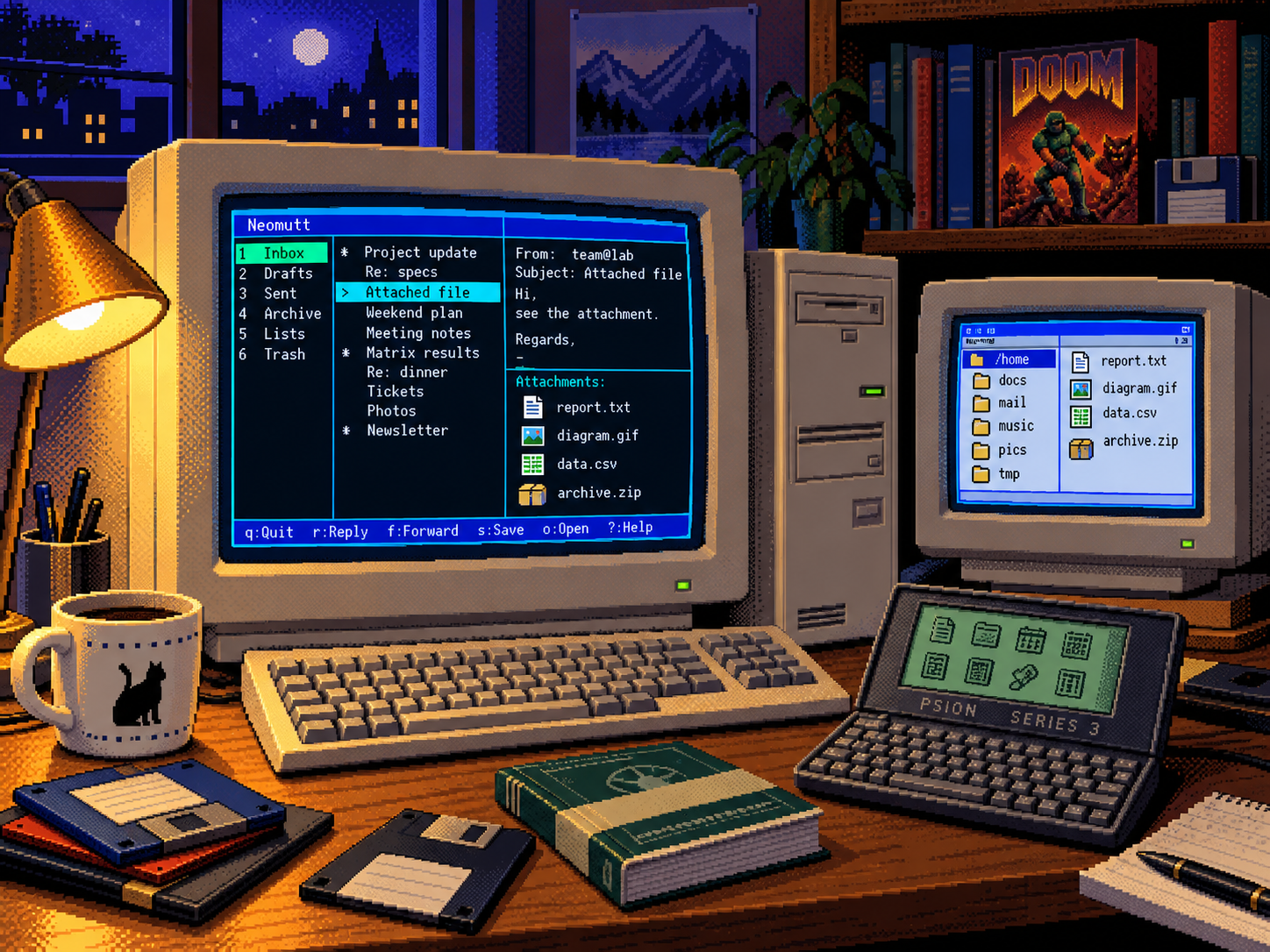 |
| Mail attachments, opened one carefully chosen pixel at a time. |
Table of Contents 📑
Tired of being locked into a single default program for your email attachments in Neomutt? This tutorial will guide you through creating an intelligent file-open-chooser that dynamically reads your system’s mimeapps.list configuration. With a single keypress, you can select from all associated applications to open any attachment, bringing the flexibility of a file manager like Ranger directly into your email client.
Changelog
| Date | Change |
|---|---|
| 2025-08-04 | Initial version of the tutorial published. |
1. Prerequisites
Before we begin, ensure your system has the necessary software and configuration in place.
1.1. Required Software
This script relies on a few common command-line utilities.
# Arch Linux Installation
sudo pacman -S neomutt rofi file

# Optional: dmenu as a fallback for rofi
sudo pacman -S dmenu
1.2. Existing Configuration
You should already have:
- A working Neomutt setup (e.g., one configured with
mutt-wizard). - A populated
~/.config/mimeapps.listfile with your preferred application associations.
2. The Core Script: file-open-chooser
This script is the heart of our new functionality. It identifies an attachment’s file type, finds all associated programs from your mimeapps.list, and presents them in a selection menu.
| ℹ️ BEYOND NEOMUTT |
While we focus on Neomutt here, this script is a full-featured, system-wide file opener. It reads your mimeapps.list and works in any context where files can be piped via stdin - terminal, other mail clients, RSS readers, or custom scripts. |
Step 1: Create the Script’s Directory and File
To keep your scripts organized, we will create a dedicated folder and the script file within it.
# Create the subdirectory for our project
mkdir -p ~/Scripts/file-open-chooser

# Create the script file itself
touch ~/Scripts/file-open-chooser/file-open-chooser.sh
Now, open the file ~/Scripts/file-open-chooser/file-open-chooser.sh and paste the entire content below into it.
#!/bin/bash
set -euo pipefail

# Create a temporary file to hold the attachment content piped from Neomutt
tempfile=$(mktemp)
cat > "$tempfile"

# Determine the MIME type of the temporary file
mimetype=$(file --mime-type -b "$tempfile")

# --- Function to extract available programs from mimeapps.list ---
get_programs_for_mime() {
    local mime="$1"

    # Read from both [Default Applications] and [Added Associations] sections
    for section in "Default Applications" "Added Associations"; do
        if grep -q "^\[$section\]" ~/.config/mimeapps.list 2>/dev/null; then
            # Use awk to find and print programs for the given MIME type
            apps=$(awk -v section="$section" -v mime="$mime" '
                /^\[.*\]/ { current_section = $0; gsub(/[\[\]]/, "", current_section) }
                current_section == section && $0 ~ "^" mime "=" {
                    sub("^" mime "=", "")
                    gsub(/;/, "\n")
                    print
                }' ~/.config/mimeapps.list)

            if [ -n "$apps" ]; then
                echo "$apps"
            fi
        fi
    done

    # Always include a "Default" option to use the system's xdg-open
    echo "Default"
}

# --- Function to convert a .desktop file name to a human-readable application name ---
desktop_to_name() {
    local desktop="$1"
    local desktop_file=""

    # Search for the .desktop file in standard system locations
    for dir in ~/.local/share/applications /usr/share/applications /usr/local/share/applications; do
        if [ -f "$dir/$desktop" ]; then
            desktop_file="$dir/$desktop"
            break
        fi
    done

    if [ -n "$desktop_file" ]; then
        # Extract the 'Name=' field from the .desktop file
        name=$(grep "^Name=" "$desktop_file" | head -1 | cut -d'=' -f2-)
        echo "${name:-$desktop}" # Fallback to the filename if Name is not found
    else
        echo "$desktop"
    fi
}

# --- Main Logic ---

# Collect a unique, sorted list of programs
programs=$(get_programs_for_mime "$mimetype" | sort -u)
display_programs=""

# Build the display list with readable names
while IFS= read -r program; do
    if [ "$program" = "Default" ]; then
        display_programs="$display_programs$program\n"
    else
        readable_name=$(desktop_to_name "$program")
        display_programs="$display_programs$readable_name ($program)\n"
    fi
done <<< "$programs"

# Show the selection menu using rofi, dmenu, or a terminal prompt as fallback
choice="" # Initialize variable
if command -v rofi >/dev/null; then
    choice=$(echo -e "$display_programs" | rofi -dmenu -p "Open $mimetype with:")
elif command -v dmenu >/dev/null; then
    choice=$(echo -e "$display_programs" | dmenu -p "Open $mimetype with:")
else
    echo "Choose program to open $mimetype file:"
    echo -e "$display_programs" | nl
    read -p "Enter choice number: " num
    choice=$(echo -e "$display_programs" | sed -n "${num}p")
fi

# Exit if the user cancelled the selection (e.g., by pressing Esc in rofi)
if [ -z "$choice" ]; then
    rm -f "$tempfile"
    exit 0
fi

# Execute the chosen program
if [ "$choice" = "Default" ]; then
    setsid xdg-open "$tempfile" >/dev/null 2>&1 &
else
    # Extract the .desktop filename from the selection (e.g., from "Okular (org.kde.okular.desktop)")
    desktop_file=$(echo "$choice" | sed 's/.*(\(.*\))/\1/')
    if [ -n "$desktop_file" ] && [ "$desktop_file" != "$choice" ]; then
        # Use gtk-launch for .desktop files, as it's the proper way to launch them
        setsid gtk-launch "$desktop_file" "$tempfile" >/dev/null 2>&1 &
    else
        # Fallback to xdg-open if something went wrong
        setsid xdg-open "$tempfile" >/dev/null 2>&1 &
    fi
fi

# Clean up the temporary file after a delay to give the program time to open it
(sleep 60; rm -f "$tempfile") &
Step 2: Make the Script Executable
Your shell needs permission to run the script file.
chmod +x ~/Scripts/file-open-chooser/file-open-chooser.sh3. Neomutt Integration
Now, let’s teach Neomutt our new trick. We will bind the o key (for “open”) in the attachment view to execute our script directly.
Add the following line to your Neomutt configuration file (e.g., ~/.config/mutt/muttrc):
# Add a macro to the attachment menu (key 'o') to pipe the
# attachment to our script by calling it with its full path.
macro attach o "<pipe-entry>bash $HOME/Scripts/file-open-chooser/file-open-chooser.sh<enter>" "Choose program to open attachment"| ℹ️ WHY 'BASH $HOME/...'? |
By explicitly calling |
4. Usage in Neomutt
Your new workflow is simple and efficient:
- Navigate to an email with an attachment.
- Press
vto open the attachment view. - Use the arrow keys to select the desired attachment.
- Press
o(our new macro). - A Rofi (or dmenu) window will appear, listing all compatible programs.
- Select a program, and the file will open.
Example Workflows:
- PDF Attachment →
o→ Choose between Okular, Zathura, Evince… - Image Attachment →
o→ Choose between Viewnior, GIMP, Inkscape… - Video Attachment →
o→ Choose between MPV, VLC…
5. Customization
To add a new program to the list for a specific file type, simply edit your ~/.config/mimeapps.list file. The changes are picked up by the script immediately, with no need to restart anything!
Example [Added Associations] section:
[Added Associations]
application/pdf=org.kde.okular.desktop;org.pwmt.zathura.desktop;org.gnome.Evince.desktop;
image/jpeg=viewnior.desktop;gimp.desktop;
Another Useful Keybinding
You can still define a separate shortcut to always use the default system application without seeing the menu.
# Add this to your muttrc. 'O' (Shift+o) will open with the default handler.
macro attach O "<pipe-entry>xdg-open<enter>" "Open with default application"
6. Troubleshooting
If things don’t work as expected, here are some common issues and their solutions.
| Permission denied error | The script is likely not executable. Run chmod +x ~/Scripts/file-open-chooser/file-open-chooser.sh again to be sure. |
| File not found error | Double-check the path in your Neomutt macro. Make sure it exactly matches the location of your script. Verify with ls -l ~/Scripts/file-open-chooser/file-open-chooser.sh. |
| Rofi/dmenu does not start | Test rofi directly by running rofi -show run. If it fails, check for error messages. Ensure it’s installed. The script should fall back to a terminal prompt if rofi is missing. |
| Incorrect or no programs listed | Test the MIME type detection with file --mime-type -b /path/to/some/file.pdf. Check your ~/.config/mimeapps.list to ensure the associations for that MIME type are correct. |
7. Conclusion
By implementing this file-open-chooser, you’ve significantly enhanced Neomutt’s capabilities. Your setup now:
- ✅ Leverages your existing
mimeapps.listconfiguration without duplication. - ✅ Works universally with any file type.
- ✅ Provides flexible application choices with a single keypress.
- ✅ Integrates elegantly with modern tools like Rofi.
- ✅ Is robust, with fallbacks for different system configurations.
- ✅ Is easy to set up with a direct, simple configuration.
You now have the same power and flexibility to open files in your email client as you do in your file manager.
📚 🚀